UV Unwrapping in Blender: Clean Islands, Even Texel Density
UV Unwrapping in Blender Starts With a Decision, Not a Shortcut
UV unwrapping in Blender is the step where a finished mesh becomes a surface a texture can live on, and it is mostly a set of decisions: which method fits the shape, how much texel density the asset deserves, and where the seams go. Blender handles flattening and packing well. Seam placement is the judgement call that resists automation, and every later step inherits it.
The map itself is a 2D layout in the 0 to 1 space: each face gets a matching face in that square, and the texture is read through those coordinates. Seams are the cuts that let a closed surface open flat without overlapping itself. Match the method to the shape: an organic form wants an angle-based unwrap, a mechanical prop wants Smart UV Project, a long pipe wants Follow Active Quads.
Blender 5.2 Gives You Three Unwrap Methods
The Unwrap operator sits on U in Edit Mode. It cuts the selected faces along their seams, flattens them and lays them out on the UV map, overwriting existing coordinates. The Adjust Last Operation panel offers three methods.
- Angle Based (ABF): a good 2D representation that respects angles. The default for a reason, and usually the winner on a head or a creature.
- Conformal (LSCM): usually less accurate, but performs better on simpler objects and flat surfaces.
- Minimum Stretch (SLIM): minimizes distortion for areas and angles at once, with an
Iterationscount andImportance Weights. Those weights give faces around high-weight vertices more UV space, so you can protect a face without splitting the mesh. SLIM arrived in the Geometry Nodes Unwrap node in 5.1; 5.2 exposes it in the operator.
Set the Texel Density Before You Mark a Seam
Texel density is how many texture pixels cover one meter of surface. Pick one number per project and hold every asset to it, because mixed densities are why two props look like they came from different games. Starting points: 256-512 px/m for background assets on a 512 to 1K map, 1024 px/m for a standard prop on 2K, 2048 px/m or more for hero assets on 4K.
The checker map and the Stretch overlay
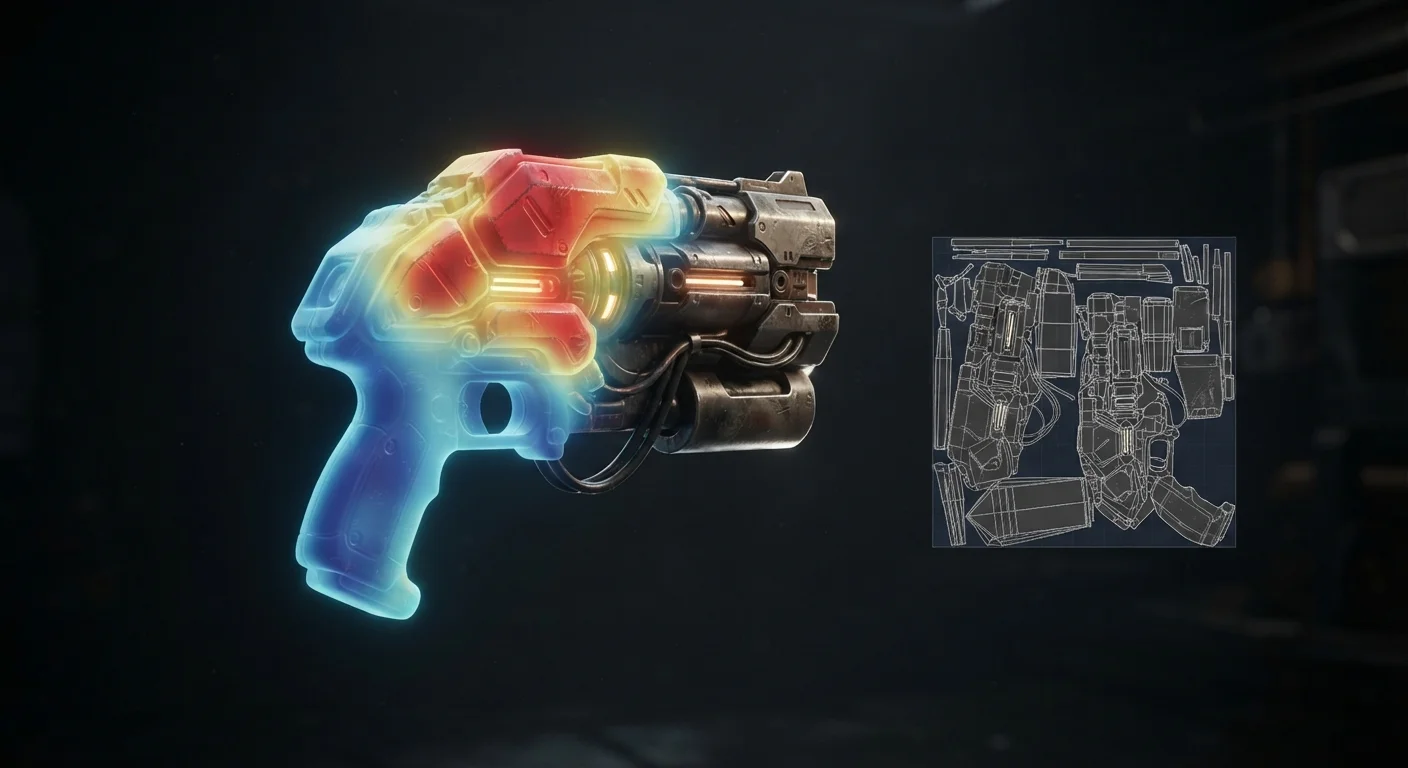
A checker texture makes density drift obvious: squares that change size across the mesh, or between two neighbouring models, mean the density is uneven. For distortion, enable Display Stretch in the UV Editor overlays. Blue means little distortion, red means high distortion. Display Stretch Type switches between Angle, comparing mesh face angles with their UV faces, and Area, comparing areas.
Red areas get a new seam, not nudged vertices. Nudging trades one distortion for another instead of removing it.
Mark Seams Where Nobody Will Look
The manual frames a seam like a seam in sewing: more seams mean less stretching, but more seams make 2D texturing harder because island edges have to line up. Mark with Ctrl+E > Mark Seam, clear with Ctrl+E > Clear Seam.
Natural breaks, hidden sides, high curvature
Put seams where the shape already breaks: under the arm, down the inside of a leg, along the bottom of a crate, on the back of a head. Cut at high curvature and avoid cutting a flat continuous surface that maps fine as one piece. Seams do not need closed loops; they only need to resolve the regions that stretch. On bilateral meshes, seam along the mirror axis and overlay both halves so left and right share pixels; on a character, seam at the hairline and unwrap only the front.
Verify with Select Linked in Face Select mode
Select one face, run Select Linked, and it selects everything connected up to a seam. If faces outside your intended island light up, the seam is not continuous. Seams from Islands does the reverse on inherited meshes: it adds seams at the boundaries of the existing islands.
The Adjust Last Operation Panel Is Where the Unwrap Is Won
Margin Method: Fraction expresses the margin as a fraction of the UV bounds, so on a 1024x1024 texture a margin of 1/1024 gives each island one pixel of space, and islands end up no closer than two pixels apart. Scaled and Add are looser, arbitrary measures.
Fill Holes virtually fills holes before unwrapping to avoid overlaps and preserve symmetry. Correct Aspect needs a material with an Image Texture node selected in the Shader Editor. Original Bounds, new in 5.2, unwraps into the original bounds instead of re-packing, which suits a mesh whose layout is already placed.
Smart UV Project and Projections for Mechanical Shapes
Smart UV Project examines the angles between selected faces, cuts along sharp edges, then projects each group along its average normal, which fits mechanical objects and architecture. Angle Limit is the dial: a low limit gives many small islands with little distortion, a high limit gives few large ones with more distortion. Area Weight at 0 averages normals plainly, at 1 it weights by face area.
Cube Projection maps each face to the most suitable side of a virtual cube and stacks the sides overlapping, so run Pack Islands afterwards. On Cylinder and Sphere projection the setting that matters is Pole: Pinch puts every UV version of the axis vertex at the same U and distorts badly, while Fan spreads them to minimize distortion, the one you want on a dome cap. Radius means half the cylinder's height, not its radius.
Follow Active Quads starts from the active quad and recursively attaches neighbouring quads, ignoring non-quads. Its UV shape is left alone, so fix that quad first or the distortion spreads. Edge Length Mode offers Even, Length and Length Average, right for pipes needing uniform density along a run.
Pack Islands: Fill the Square, Keep the Margin
Pack Islands scales, rotates and translates existing islands to fill the texture space while keeping a margin. Shape Method: Exact Shape (Concave) uses the full shape including holes and is slower, Boundary Shape (Convex) uses the hull and never places an island inside a hole, and Bounding Box is the fast option.
Margin rule of thumb: one pixel per 256 pixels of map, so 4 px at 1K, 8 px at 2K and 16 px at 4K. Too tight and you get coloured fringing on a shrinking object at distance. Turn Rotate off for axis-aligned pipelines, and use Lock Pinned Islands.
Even Texel Density Across the Asset
Average Island Scale scales every island so they are all approximately the same scale. It fixes the "one part is sharp and the other is soft at the same resolution" problem. Non-Uniform scales U and V independently to lower average stretch; Shear shears the U axis to reduce shearing.
Minimize Stretch minimizes the difference between 3D and UV angles. Blend at 0 is fully minimized, 0.5 is halfway back to the original, and Iterations controls how long it works. Run it after packing: on a bad layout it only refines a bad layout.
One Atlas, Several Maps or UDIMs
One mesh can hold several UV maps, and the one flagged Active Render is what the Texture Coordinate node, the UV Map node and the UV Pass use when nothing else is specified. Check it in Properties > Data > UV Maps before exporting.
UDIM spreads islands across several textures, each tile with its own 0 to 1 space. The main tile is 1001 and the array is ten tiles wide: 1001 to 1010 on the first row, 1011 above 1001. Minimum split for a large asset: three textures at 4K, 2K and 1K.
Export, Check Overlaps and Hand Off to the Bake
Run Select Overlap before anything else. Overlapping islands are fatal for a bake and intentional for tiling or mirrored assets, so know which case you are in; 5.2 added island support, so the answer is which island overlaps rather than just some faces do.
From here the pipeline splits: texture baking in Blender starts where this ends, retopology in Blender is the step before it, trim sheets reuse strip UVs on one map, and assets that need no texture use vertex colors instead. Paid helpers sit in the add-ons roundup.
Pre-Export UV Checklist
- One texel density, verified with a checker map across the whole asset set.
- Stretch overlay clean in Angle and Area, no red patch left unexplained.
- Seams continuous, checked with Select Linked in Face Select mode.
- Margin on Fraction, then Average Island Scale, Pack Islands and Minimize Stretch.
Flattening and packing are the parts Blender does well. Deciding where the mesh should open separates a texture that survives a bake from one that fights you for a week. If you would rather skip the unwrap, the models and kits in the QuickPoly catalog ship with finished, packed UVs at a documented density, so you start from a game-ready asset and spend the saved hours on the hero piece.