Shading Artifacts in Blender: Fix Them With Sharp Edges and Custom Split Normals

What Causes Shading Artifacts in Blender
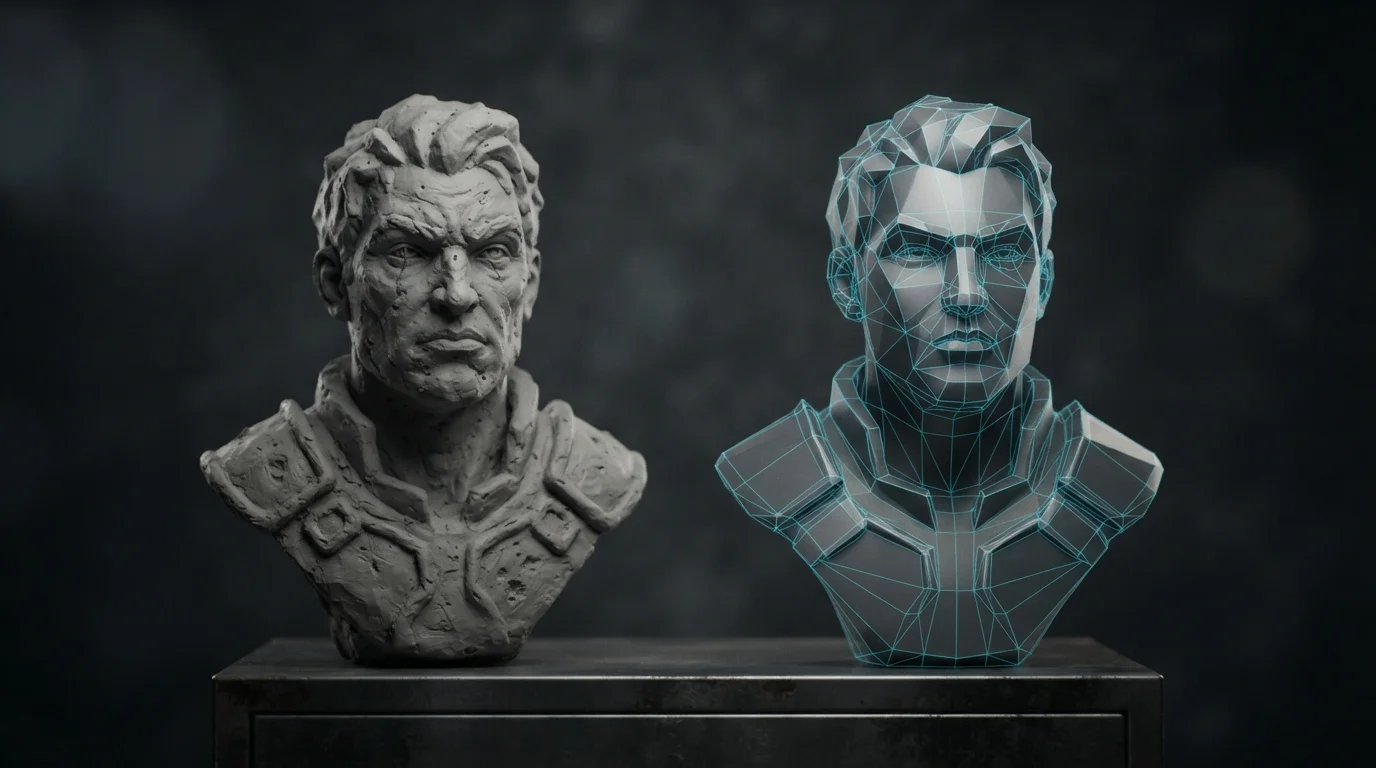
A normal is the direction perpendicular to a face, and shading artifacts in Blender come from that data, not from the polygon count. With flat shading each face renders as a single tone taken from its face normal. With smooth shading the normals are interpolated between vertices, so neighbouring polygons blend into one continuous surface. Three details explain most of what you are about to see: Shade Smooth does not move a single vertex, so the outline of the object stays faceted even when the surface looks smooth; normals in Blender 5.2 LTS are stored per face corner, which is why a mesh can carry shading data a plain vertex average cannot reproduce; and none of this is a texture problem. If what you are missing is surface detail in a material, that is bump, normal or displacement maps, a separate topic from the geometry normals covered here.
Diagnose Before You Fix Anything
Do not start dragging sliders. Turn on two overlays in the 3D Viewport and the answer usually appears in ten seconds.
- Face Orientation paints the reverse side of every face in red. Red on the outside means the faces point inward: select them and use Flip, or recalculate. Nothing about custom normals will help a mesh whose faces face the wrong way.
- Normals draws the actual direction vectors. You can switch between vertex normals, face normals at vertices (split normals) and face normals, and adjust Size with Constant Screen Size so the lines stay readable while you zoom.
- Check for duplicated geometry, doubles inside the same object and non-manifold edges. Two overlapping surfaces can fight over the same pixels and no normal setting fixes that.
- Confirm the position of the modifiers in the stack. A Weighted Normal placed above a Bevel works on pre-bevel geometry, which is rarely what you want.
The practical rule: if the dark smudge moves when you rotate a normal, it is normal data. If it stays exactly where it was, it is geometry, ngons or coplanar faces.
Shade Smooth, Shade Flat and Smooth by Angle
The old Auto Smooth checkbox is gone, and that is the reason half the outdated tutorials on the internet lead nowhere. In Blender 5.2 LTS, Shade Auto Smooth in the Object menu adds a Smooth by Angle modifier. That modifier is a Geometry Nodes asset shipped in the Essentials library, it gets pinned as the last modifier in the stack, and its Angle value is the maximum angle between face normals that still counts as smooth. Ignore Sharpness lets it override your manually marked edges.
Two behaviours worth memorising: Shade Smooth and Shade Flat both delete Smooth by Angle modifiers from the object, and both offer Keep Sharp Edges so your hand-marked edges survive the operation.
Mark Sharp Edges Where the Shape Actually Breaks
Sharp edges are the cheapest fix and the one artists skip. In Edit Mode, select the loops that define the silhouette and use Ctrl+E > Mark Sharp; Clear Sharp removes the mark. Mark the edges a machinist would actually bevel: box corners, panel gaps, the border where a bevel starts, the flat caps of a hard-surface prop.
Use the Angle value of Smooth by Angle as the automatic first pass, then mark by hand the places where a threshold gets it wrong: curved surfaces that should look faceted, thin bevels under about twenty degrees, and cylinders where you want the caps flat but the wall smooth.
The Weighted Normal Modifier, Setting by Setting
Weighted Normal rewrites the custom normals of the mesh so chosen faces read as flat while everything around them stays smooth. It is the difference between a bevel that glows and a bevel that looks dented.
- Weighting Mode: Face Area weights by face size, Corner Angle weights by the angle each face forms at the vertex (this is the method Blender uses by default to combine face normals into a vertex normal), and Face Area and Angle multiplies both.
- Weight: contrast. 50 means every face weighs the same, above 50 gives even more power to large faces, below 50 takes it away.
- Threshold: if two areas or angles differ by less than this value, they receive the same weight, which smooths out noisy geometry.
- Keep Sharp: respects the Sharp marks, though smoothing still happens across the faces between two sharp edges.
- Face Influence: uses the weak, medium and strong face weights set with the Set Strength tool or the Bevel modifier. If three faces meet at a vertex as weak, medium and strong, only the strongest one decides the result.
- Vertex Group: restricts the effect to those vertices, with an arrow button to invert the selection.
Custom Split Normals by Hand
Alt+N opens the Normals popover in Edit Mode, and almost nobody opens it. It holds the surgical tools: Flip, Recalculate Outside (Shift+N), Recalculate Inside (Shift+Ctrl+N, no closed volume required), Set from Faces with a Keep Sharp Edges option that leaves each vertex normal at the average of the selected faces, Rotate (R, then N) and Point to Target (Alt+L, with targets on the mouse, the pivot, the origin, the 3D Cursor or a picked element, plus Invert, Align, Spherize and Reset).
The critical fact the popover hides: Flip and Recalculate do not touch custom split normals. If your shading broke because of custom data, recalculating outside loops forever with no result. Use Merge to smooth selected edges and average the custom normals in their group, Split for the inverse, and Average to group face corners by Sharp edge and average inside each group, choosing Type as Custom Normal, Face Area or Corner Angle with a Weight and a Threshold. Smooth Vectors and Reset Vectors clean up leftovers, and Copy Vector / Paste Vector moves a normal between elements.
Where Custom Normals Earn Their Keep
The flagship case is Harden Normals on the Bevel modifier. With it enabled, the bevel faces get normals that match their neighbours without affecting them, so flat panels stay flat and the bevel reads smooth on top. The manual is explicit: the mesh needs the custom split normals attribute, and Blender creates custom_normal on the face corner domain if it is missing. Thin bevel, Harden Normals and Weighted Normal together are how a hard-surface prop looks expensive at a low polygon count. This is exactly the workflow behind the models in the QuickPoly catalog, where bevels ship with Harden Normals and sharp edges already marked.
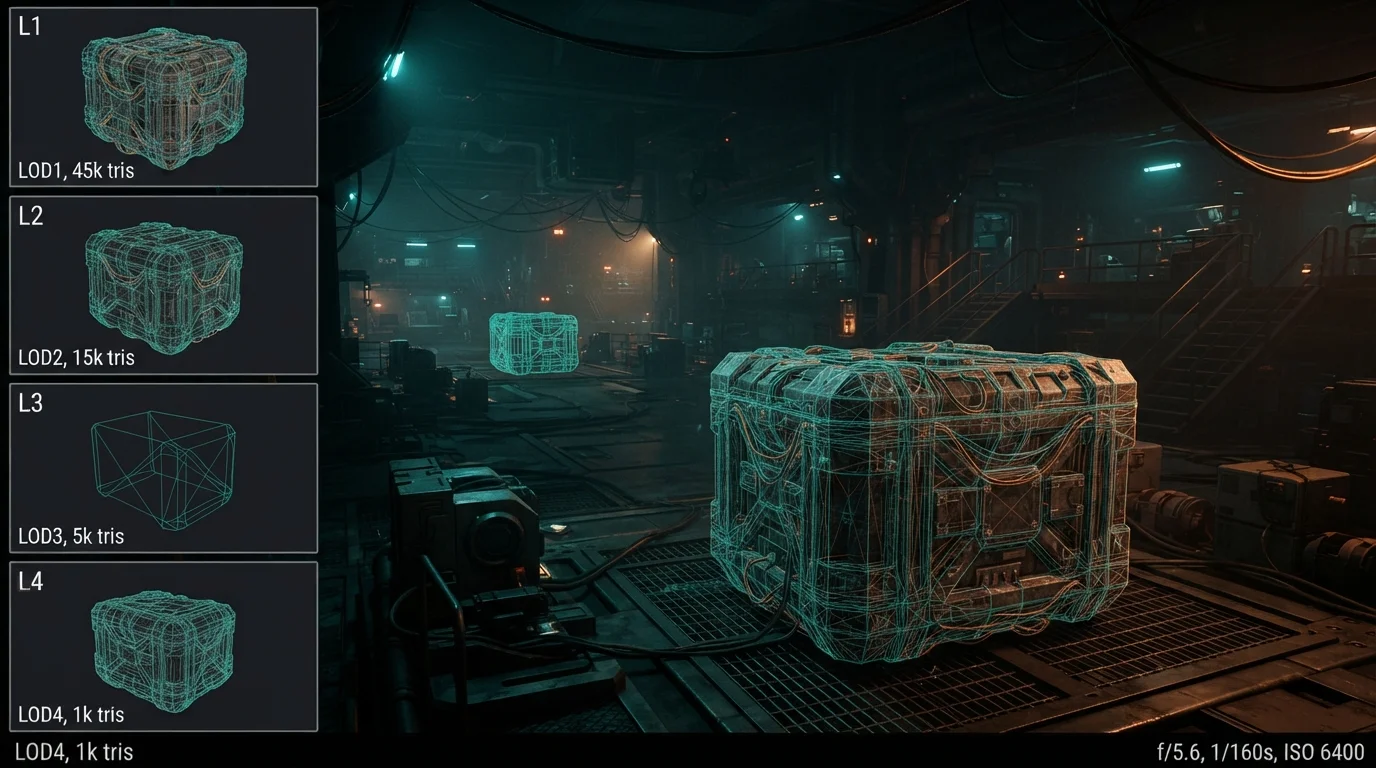
The other big win is foliage: low poly trees, bushes and grass look flat and cardboard until their face corners point outward, and rounded corners on props the same. Those normals usually survive retopology but not decimation for LODs, so rebuild them after the last reduction. One performance note worth knowing: the custom normal calculation can be disabled under Simplify > Rendering, and free normals, stored as object space vectors, evaluate faster and use less memory but stay static, so they ignore modifiers and deformation.
Check Before You Export
Run this list before the file leaves Blender, because normals travel inside the FBX or glTF and the bug looks identical in Unity, Unreal and Godot:
- Face Orientation clean on the visible side of every mesh.
- Sharp edges marked on every silhouette break, Smooth by Angle last in the stack.
- Weighted Normal below Bevel, never above.
- No doubles or overlapping shells in the object.
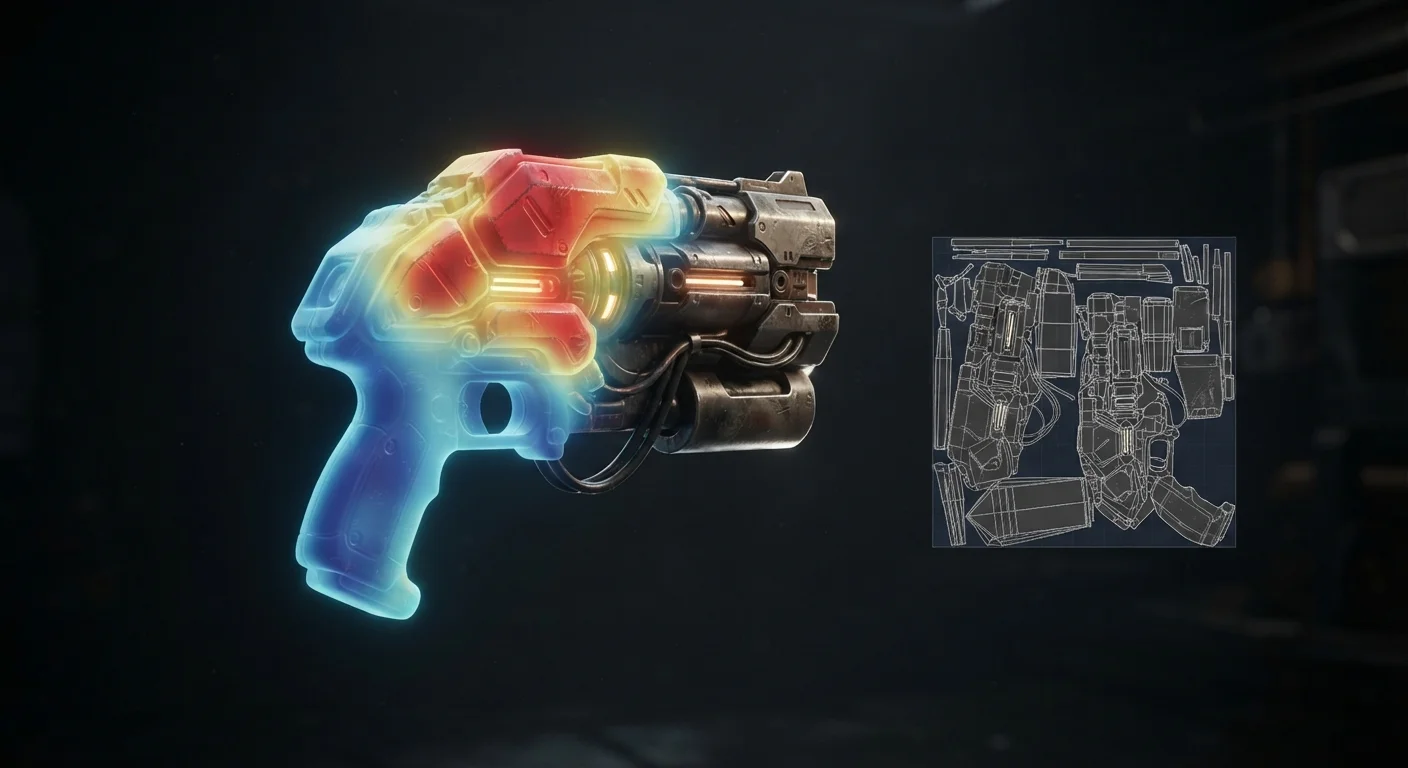
- Seams and islands sane from your UV pass before you bake.
- Test render at the final poly count, not just in the viewport.
Nothing here is a one-click fix, and that is fine: shading is data, and data can be edited.